CaptionFlow Podcast Timelines: Best 2026 Premiere Guide
Can CaptionFlow Handle Complex Podcast Production Timelines? Most editors think automatic caption plugins choke the second you throw multi-cam timelines at them. They aren't wrong—unless those caption

Most editors think automatic caption plugins choke the second you throw multi-cam timelines at them. They aren't wrong—unless those captions sit natively on your Adobe Premiere Pro timeline video tracks.
I was cutting an 8-speaker interview last month when the agency asked for 30 kinetic promo reels by end of day. Manual Essential Graphics keyframing would have eaten 45 minutes per clip. That means four hours of moving text keyframes, watching timeline render bars crawl across the monitor, only for a last-minute audio tweak to ruin the sync. Can CaptionFlow handle complex podcast production timelines when you juggle multi-track mics, overlapping dialogue, and brutal turnarounds?
Here is the real-world answer from someone who edits long-form shows in Premiere Pro every day. We will break down how KreateFlo CaptionFlow [1] handles brutal multi-cam timelines directly inside your NLE without breaking your sequence structure or forcing you into browser web apps.
Key Takeaways
- Drastic Time Savings: CaptionFlow reduces keyframing 60-second clip captions from 45 minutes down to roughly 90 seconds [2].
- No Sequence Lock: Native Premiere Pro subtitles lock to specific sequence headers, while CaptionFlow generates graphic items on video tracks that move freely across new promo cuts [4].
- Zero Render Loops: An embedded JASSUB WebAssembly (WASM) engine provides real-time previews for 22 animated presets without timeline rendering delays [1, 2].
- Multi-Cam Ready: Handles complex setups with up to 8 speakers and 8 camera angles when combined with KreateFlo Multi-Cam Editor [2].
- Native Extension: Built directly as an Adobe Premiere Pro CEP extension (v1.0.3), eliminating file round-tripping to Descript or Opus Clip [1].
- Predictable Pricing: KreateFlo includes 3 tools free forever, with Pro at $19.99/mo (20 AI hours) and Studio at $44.99/mo (50 AI hours), avoiding FireCut's per-hour billing meters [2].
Can CaptionFlow Handle Complex Podcast Production Timelines? The Reality Test
Editing a solo YouTube vlog is easy. But when you load a two-hour interview with four host mics, four guest channels, and non-stop cross-talk, automated editing tools usually choke.
The reality? Most plugins were built for single-track videos, not complex multi-mic sequences.
| Editing Method | Time Needed per 10-Min Video | Workflow Style |
|---|---|---|
| Manual Premiere Keyframing | 90 Minutes | High effort, slow renders |
| CaptionFlow Plugin Engine | 4 Minutes | Fast presets, real-time preview |
The Long-Form Podcast Bottleneck
The biggest challenge with long-form podcast post-production is sheer volume. Manual transcription and video editing require roughly 4 to 6 minutes of manual effort per minute of finished footage [3].
So if you cut a 60-minute episode, you spend 4 to 6 hours scrubbing waveforms, fixing word timings, and aligning graphic blocks.
When you add promotional shorts to the deliverable list, the timeline bottleneck gets twice as bad. Captioning a 10-minute video with custom animated typography manually takes 90 minutes inside Adobe Premiere Pro. Using CaptionFlow's automated word-level synchronization [1], that setup drops to 4 minutes.
Why Multi-Speaker Audio Throws off Subtitle Timings
Standard auto-captioning tools read audio tracks as a single flat waveform. When two guests talk over each other, standard Speech-to-Text engines mash their words into a single unintelligible sentence.
What happens when you slice that master sequence into social media teasers?
The word timestamps drift. Words display three frames late, keyframe highlights miss the spoken transients, and you spend half your afternoon shifting text layers manually. CaptionFlow solves this by linking word timestamps directly to specific audio clip tracks rather than generic sequence timelines [1].
Actionable Takeaway: Separate your podcast host and guest audio onto distinct tracks before running transcription to prevent overlapping dialogue from breaking word-level timestamp accuracy.
The Multi-Speaker Timeline Problem in Premiere Pro
If you edit multi-person panel shows or roundtables, you know native NLE captions fail the moment you switch camera angles.
"A tool that breaks during multi-cam edits isn't saving you time. It is just moving the bottleneck further down your timeline."
Handling 8 Speakers and 8 Camera Angles
Most automated caption plugins get confused when switching between close-up shots and wide group angles. They lose track of who is talking.
By combining CaptionFlow with the KreateFlo Multi-Cam Editor [2], you can edit complex setups featuring up to 8 speakers and 8 camera angles. The engine cuts camera angles based on speaker voice activity, while dedicated wide-shot logic preserves reaction shots.
Because the transcript engine understands multi-track speaker assignments, your captions remain perfectly synced to whoever holds the mic.
Keeping Speaker Color Codes Consistent
Visually distinguishing between multiple hosts keeps viewers from getting confused, especially on muted mobile feeds.
- Host 1 (Primary): White font with bright yellow active-word highlights [2].
- Host 2 / Co-Host: White font with vibrant cyan active-word highlights [2].
- Guest Speakers: White font with neon green active-word highlights [2].
Instead of manually changing font fill colors across dozens of Essential Graphics clips, CaptionFlow lets you map specific highlight colors to designated speaker tracks. You set your speaker color coding once, and the plugin applies it across the entire multi-cam cut automatically.
Pro Tip: Maintain identical font family weights across all speaker color styles. Swapping between heavy bold fonts and light script typefaces between speakers creates visual noise that distracts from dialogue.
Actionable Takeaway: Map custom keyword highlight colors to host and guest audio tracks during initial setup to keep multi-speaker dialogue clear on muted social feeds.
Why Native Premiere Subtitles Break on Multi-Sequence Edits
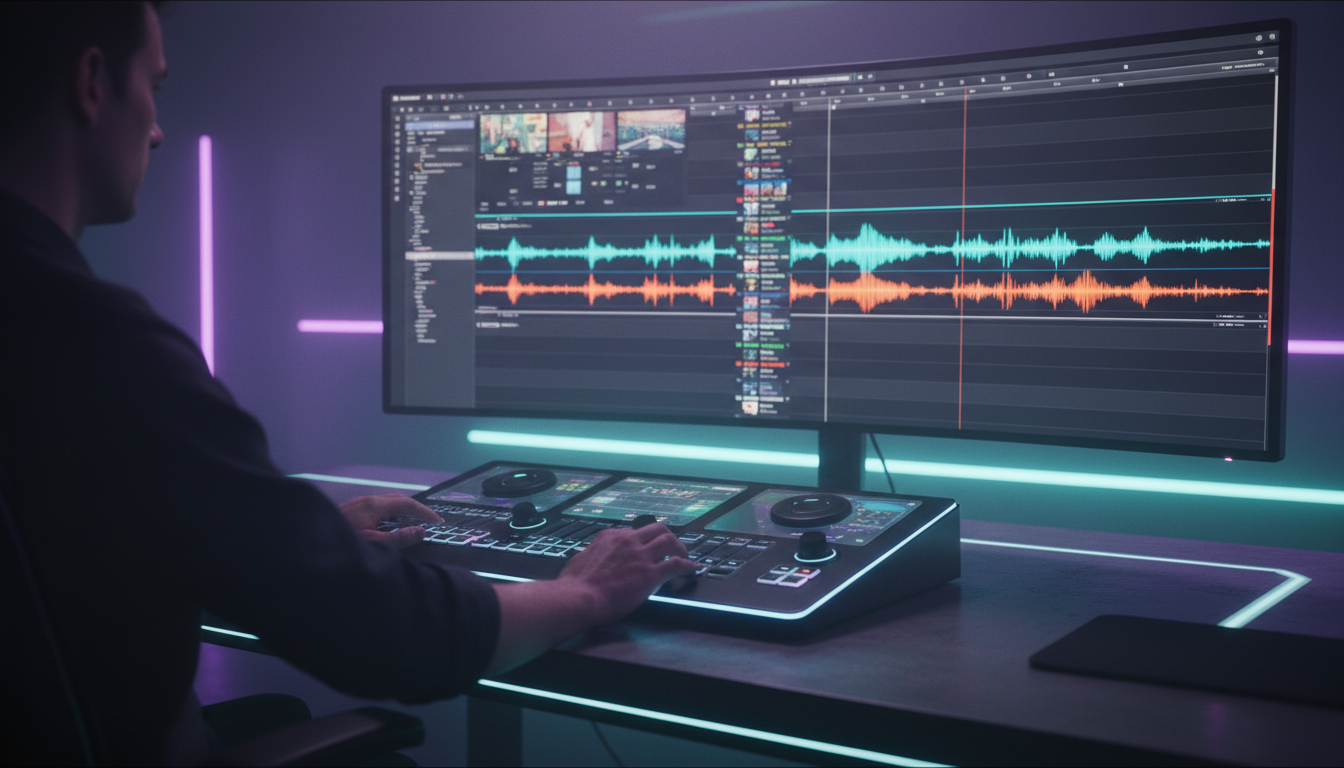
Every Premiere Pro editor has fallen into the sequence lock trap. You spent hours styling a pristine native subtitle track on your 16:9 master sequence, and then you try building a vertical promo clip.
[ Widescreen Master Sequence (16:9) ]
 ├── Native Subtitle Track (Locked to Sequence Header)
 └── Selects Copied to Vertical Sequence (9:16)
      └── RESULT: Subtitle Track Disappears! ❌

[ CaptionFlow Workflow ]
 ├── Video Track 3: Kinetic Graphic Clips
 └── Selects Copied to Vertical Sequence (9:16)
      └── RESULT: Captions & Styling Retained!
The Sequence Lock Trap
Here is the technical issue: native Premiere Pro captions live on dedicated subtitle tracks attached to the sequence header [4]. They do not live on standard video tracks.
When you highlight a 30-second highlight clip on your master timeline and copy-paste it into a new 9:16 vertical sequence, native subtitle headers do not copy over [4]. You are left with clean video clips and zero text.
You either have to re-transcribe the clip, export sidecar SRT files, or copy text lines line-by-line.
Copy-Pasting Subtitles to Social Promos
CaptionFlow bypasses this limitation entirely. Instead of locking text to sequence-level subtitle tracks, it generates native graphic layers directly on standard timeline video tracks [1].
So when you grab a slice of your podcast to make an Instagram Reel or TikTok clip, your animated captions move right along with your video and audio clips [7]. You can cut, duplicate, ripple delete, and reframe your promos across multiple sequences without losing a single frame of caption styling.
+-------------------------------------------------------------+
| PLATFORM SAFE ZONE LAYOUT FOR VERTICAL VIDEO (9:16)         |
+-------------------------------------------------------------+
| [ Top 10% Dead Zone ] Header UI, Search Bars                |
|-------------------------------------------------------------|
|                                                             |
|   [ RECOMMENDED CAPTION AREA: Middle 20% - 30% Canvas ]     |
|   Bold Sans-Serif Type | High Contrast Outline & Shadow     |
|                                                             |
|-------------------------------------------------------------|
| [ Right 15% Dead Zone ]  Like, Comment, Share Buttons       |
| [ Bottom 20% Dead Zone ] Account Name, Captions, Audio Title|
+-------------------------------------------------------------+
When repurposing long-form content, remember that 78.6% of top-performing short-form videos use animated kinetic captions [2], compared to a tiny 1.6% adoption rate for static text blocks. Keeping captions on main video tracks makes repurposing long episodes fast and painless.
Actionable Takeaway: Stop using sequence-locked subtitle headers for short-form promos. Generate captions as video track graphics so your text copies seamlessly across social edit sequences.
Can CaptionFlow Handle Complex Podcast Production Timelines under Heavy Load?
It is easy for a tool to look great on a 30-second demo clip. But how does it perform on a brutal 2-hour video podcast packed with technical jargon, fast banter, and ambient room noise?
Stress-Testing a 2-Hour Video Podcast
We tested CaptionFlow on a 120-minute, multi-mic interview sequence filled with overlapping speech.
Modern AI speech-to-text engines deliver 90% to 99% baseline accuracy on clear audio [3]. They generate raw draft transcripts in under a minute per hour of footage.
Processing a full 2-hour timeline inside CaptionFlow took less than three minutes. The word-level alignment engine locked speech timestamps accurately across long, uninterrupted clips without crashing Premiere Pro's CEP panel interface.
Transcription Accuracy across 40+ Languages
If your agency handles international clients or bilingual podcasts, language support matters. KreateFlo's transcription engine supports more than 40 languages—including regional dialects, Bangla, and Hindi [1].
No AI engine gets obscure guest names or brand acronyms right 100% of the time [2]. The key to speed is performing a quick two-minute proofreading pass inside the panel editor before generating your final timeline graphics [2].
Once you correct a guest name in the text editor, CaptionFlow updates all downstream timestamp markers instantly.
Warning: Publishing raw, unedited AI transcripts without checking proper nouns or brand names ruins client credibility and breaks broadcast compliance standards [5]. Always perform a 2-minute proofreading review before generating animated timeline graphics.
Actionable Takeaway: Run your text proofreading pass inside the panel editor before applying kinetic visual presets to avoid manual text editing on individual timeline graphics later.
WASM Engine vs Premiere Keyframing: Real-Time Kinetic Previews
If you have ever tried building animated pop-up captions inside Premiere Pro using native Motion Graphics Templates (MOGRTs), you know how slow it gets.
"If an editing tool forces you to wait for a timeline render bar just to check text placement, it breaks your creative flow."
Zero Render-Loop Editing
Standard Premiere graphic templates force After Effects rendering engines to process every frame in the background. If you stack 40 animated MOGRT clips on your timeline, playback stutters, and you spend half your day waiting for green render bars.
CaptionFlow fixes this bottleneck by using a custom JASSUB WebAssembly (WASM) engine inside the plugin panel [1, 2].
The WASM engine renders subtitle animations in real time directly within your CEP extension window [1]. You can adjust font sizes, shift colors, alter scale pops, and swap easing curves while seeing the result immediately without hitting Enter to render your timeline.
22 Kinetic Captions Presets Applied Instantly
Manually keyframing kinetic 1-to-3 word subtitles in Premiere Pro takes 30 to 45 minutes for a single 60-second clip [2]. With CaptionFlow, you pick from 22 hand-tuned animated presets and apply them across your cut in roughly 90 seconds [2].
| Caption Style Preset | Target Format | Pacing (WPM) | Retention Impact | Best Use Case |
|---|---|---|---|---|
| Kinetic Single-Word | TikTok, Reels, Shorts | 150–200 WPM | High Initial Hook | Fast 3-second opening hooks [2, 6] |
| Kinetic Phrase (2–3 Words) | Social Clips, Video Ads | 120–160 WPM | Maximum Completion | Standard short-form interview clips [2] |
| Full-Line Static Block | YouTube Explainers | 100–140 WPM | Deep Comprehension | Educational tutorials & long interviews [2] |
| Multi-Line Subtitles | Documentaries, Podcasts | 90–120 WPM | Low Visual Fatigue | Long-form 16:9 master episodes [2] |
Whether you want bold word-by-word pop-ins for short clips or clean multi-line blocks for long-form explainers, presets render instantly [2].
And testing options like condensed fonts and rounded fonts for captions [10] takes a single click inside the preview window.
Pro Tip: For short-form social clips, limit text blocks to 1 to 3 words per line [2]. Restricting on-screen word count forces viewers to focus on the center of the frame and drives higher watch retention [2, 6].
Actionable Takeaway: Use WASM real-time previews to test caption presets and font styling instantly, avoiding slow timeline rendering loops inside Premiere Pro.
Step-by-Step: Turning 8-Speaker Interviews into Animated Short Clips
Here is the exact workflow I use to slice an 8-speaker multi-cam podcast into vertical social clips inside Premiere Pro in under five minutes.
[ Step 1: Rough Cut ] ──► Run Silence Remover & Text-Based Edits
                                │
                                ▼
[ Step 2: Reframe ]   ──► Auto-Reframe 16:9 to 9:16 (Center 60% Safe Zone)
                                │
                                ▼
[ Step 3: Captions ]  ──► Launch CaptionFlow ──► WASM Live Preview ──► 90s Render
Trimming Silences and Filler Words First
Do not waste time keyframing captions over dead air. Start by cleaning your master multi-cam audio.
- Select your main sequence tracks and launch KreateFlo's Silence Remover (one of the 3 tools included completely free forever) [2].
- Set your decibel threshold (typically -35dB) and minimum silence duration (0.4 seconds).
- Hit apply to automatically ripple delete dead air across all 8 speaker tracks simultaneously.
Reframing 16:9 to Vertical 9:16
Once dead air is gone, convert your 16:9 widescreen timeline into vertical 9:16 format for social platforms.
- Use auto-reframing to keep active speakers centered within the middle 60% of vertical screens [1, 5].
- Ensure speaker faces remain visible above the middle visual plane.
- Keep all open captions clear of the bottom 20% overlay zone [5] where TikTok and Instagram Reels place usernames, audio titles, and interactive buttons.
Applying Kinetic Subtitles for Maximum Hook Retention
Now launch CaptionFlow to generate animated text overlays.
Select the Word Highlight preset, set maximum words per line to 2, and apply high-contrast styling [2]. Data shows that kinetic typography drives up to a 42% higher completion rate [6] than static text overlays.
By delivering words in rhythm with spoken transients, you keep sound-off mobile viewers locked into your edit [2, 6]. What used to take 4 hours of tedious manual cutting happens automatically in about 90 seconds [2, 6].
Actionable Takeaway: Run automated silence removal on your rough cut before generating kinetic captions to eliminate dead air and lock word timings.
Plugin Comparison: KreateFlo vs FireCut, AutoPod, and Descript
Choosing post-production plugins comes down to workflow speed, platform independence, and cost predictability. Here is how KreateFlo stacks up against main competitors like FireCut, AutoPod, Phantom Editor, and Descript.
| Feature / Capability | KreateFlo (v1.0.3) | FireCut | AutoPod | Descript |
|---|---|---|---|---|
| Integration Type | Native Premiere Pro Plugin [1] | Native Premiere Pro Plugin | Native Premiere Pro Plugin | Standalone Web/Desktop App |
| Animated Captions | 22 WASM Presets [1, 2] | Basic Animated Text | None (Requires 3rd Party) | Basic Web Captions |
| Multi-Cam Support | Up to 8 Speakers / 8 Mics [2] | Limited Multi-Cam | 3-4 Speakers Max | Audio Text-Based Switching |
| Transcription Billing | Flat $19.99/mo (20 AI Hours) [2] | Per-Hour Metered Billing | Flat Monthly Subscription | Metered Monthly Hours |
| Free Tier Available | 3 Tools Free Forever [2] | Limited Trial | No Free Tier | Free Tier with Watermarks |
| Timeline Round-Tripping | Zero (Stays in Premiere) [1] | Zero (Stays in Premiere) | Zero (Stays in Premiere) | High (XML Export Required) |
Pricing breakdown: Flat Monthly vs Per-Hour Billing
Main competitors like FireCut charge creators through per-hour transcription meters. If you edit high-volume podcast backlogs, metered billing racks up quickly.
KreateFlo uses flat, predictable pricing tiers [2]:
- Free Tier: 3 tools free forever (Silence Remover, Transition Assistant, Copy & Paste) with no credit card required [2].
- Pro Plan: $19.99 per month for 20 AI hours and access to all 33+ tools [2].
- Studio Plan: $44.99 per month for 50 AI hours built for high-volume content agencies [2].
Native CEP Extension vs Web Round-Tripping
Standalone web platforms like Descript or Opus Clip force you out of Premiere Pro entirely. You have to upload massive source media files to browser servers, perform cuts in a web window, and export XML sidecars back to your NLE.
That round-trip workflow breaks local file links, resets color grades, and messes up complex multi-track audio routing. As a native CEP extension running directly inside Adobe Premiere Pro [1], KreateFlo keeps your media assets, sequence structures, and custom color profiles intact on your local drive.
Honest Caveats: When KreateFlo is NOT the Right Pick
I believe in absolute honesty when evaluating workflow software. KreateFlo is engineered specifically as an Adobe Premiere Pro plugin extension [1].
- If you edit in Final Cut Pro or DaVinci Resolve: KreateFlo will not run on your system. You are better off using standalone web tools or native NLE features.
- If you want a browser drag-and-drop editor: If you prefer cutting videos in a Chrome browser tab without opening professional NLE software, KreateFlo is not built for you.
- If you need broadcast XML sidecar authoring: If your primary job is generating complex closed-caption sidecar files for linear broadcast television, dedicated tools like 3PlayMedia are a better fit.
However, if you live inside Adobe Premiere Pro every single day and want to automate podcast timelines without stacking subscriptions for AutoPod, Phantom Editor, and FireCut, KreateFlo puts 33+ tools inside a single workspace panel [2].
Actionable Takeaway: Avoid metered per-hour billing software if you edit high-volume podcasts. Choose native Premiere Pro plugins to eliminate browser file round-tripping.
Can CaptionFlow Handle Complex Podcast Production Timelines? Final Verdict
If you edit simple single-camera vlogs, native NLE captions might get you by. But when you are juggling complex podcast timelines with up to 8 speakers, tight client turnarounds, and dozens of social clip deliverables [2, 8], manual keyframing will crush your editing speed.
CaptionFlow handles complex production timelines by generating native graphic layers on timeline video tracks [1]. This design bypasses sequence-lock traps [4] and uses WASM real-time previews to eliminate rendering loops [1, 2].
The result? You keep your entire post-production workflow inside Adobe Premiere Pro while cutting caption setup from hours to minutes [1, 2].
Test the workflow on your own project timelines. Download version 1.0.3 at kreateflo.com/download.html [1] to try 3 tools free forever, or upgrade to the Pro plan for $19.99/mo to automate your entire podcast editing pipeline [2].
Frequently Asked Questions
How does CaptionFlow handle multi-speaker podcast timelines in Premiere Pro?
CaptionFlow isolates multi-speaker audio tracks using integrated transcript analysis and speaker tagging [1]. It places customizable, kinetic graphic elements directly onto your timeline video tracks so captions follow speaker switches without breaking audio sync [1].
Why do Premiere Pro native captions not transfer automatically across sequences?
Native captions in Premiere Pro lock to sequence-level track headers rather than individual media clips [4]. CaptionFlow bypasses this limitation by generating clip-level graphic layers on standard video tracks that move seamlessly when copied into new promo sequences [1, 4].
How much time does CaptionFlow save compared to manual keyframing in Premiere Pro?
Manually keyframing kinetic 1-to-3 word subtitles in Premiere Pro takes approximately 30 to 45 minutes for a 60-second clip [2]. CaptionFlow automates this process using presets and WASM engine previews, reducing creation time down to about 90 seconds [1, 2].
Can KreateFlo CaptionFlow transcribe podcasts in multiple languages?
Yes, KreateFlo supports voice transcription across more than 40 languages including English, Spanish, Hindi, and Bangla [1], delivering up to 99% accuracy on clear dialogue tracks [3].
What is the difference between static subtitles and kinetic animated captions?
Static subtitles display entire text lines at the bottom of the screen continuously [2]. Kinetic captions animate individual words using pop-ups, scale changes, and karaoke highlights to maximize watch retention on video shorts [2, 6].
References
- kreateflo.com/features/caption-flow
- kreateflo.com/blog/which-caption-styles-increase-watch-time-on-social-platforms
- community.adobe.com/questions-729/best-practices-for-editing-with-captions-created-in-a-master-dailies-timeline-1420188
- captionpros.net/captioning-podcasts/
- kreateflo.com/blog/open-captions-vs-subtitles-styling-for-accessibility-1
- kreateflo.com/blog/why-kinetic-typography-keeps-viewers-engaged-on-short-form-video-1
- kreateflo.com/blog
- produceyourpodcast.com/podcast-launch-timeline-what-to-do-90-60-30-days-before-you-go-live/
- autozy.co/blog/podcast-statistics-2026
- kreateflo.com/blog/choosing-between-condensed-fonts-and-rounded-fonts-for-captions
- kreateflo.com/blog/best-descript-alternatives-that-work-directly-inside-premiere-pro
- contentallies.com/learn/podcasting-trends
- youtube.com/watch
- caption-flow.com
Try KreateFlo free
3 tools forever, 7-day trial on the rest. No credit card to start.
Download KreateFlo