Remove Silence Premiere Pro Free: 2026 Guide to 90s Edits
I once spent an entire Saturday afternoon cutting pauses out of a boring corporate interview. I eventually realized I could have done it in 90 seconds. If you're still using the blade tool to chop out
I once spent an entire Saturday afternoon cutting pauses out of a boring corporate interview. I eventually realized I could have done it in 90 seconds. If you're still using the blade tool to chop out dead air in Adobe Premiere Pro, you aren't being meticulous. You're wasting your life. We've officially reached a point where manual silence removal is a choice, not a necessity.
In 2026, the editing landscape shifted from technical labor to creative curation. AI-assisted silence removal is now documented to be up to 50x faster than manual scrubbing [1]. This isn't about being lazy. It's about keeping your brain fresh for the parts of the edit that require a human touch.
Key Takeaways
Manual silence removal is a massive time sink that leads to editor burnout.
Premiere Pro's native Text-Based Editing tools are a solid starting point but lack professional tightness.
A dedicated Premiere Pro plugin offers a free, automated solution that processes a 1-hour interview in under 2 minutes.
Professional editors recommend a padding of 0.15s to 0.3s to keep audio sounding natural and avoid a robotic feel natural speech padding guidelines.
Scaling a content agency requires moving from manual-first to AI-assisted workflows to handle 30+ hours of footage per week.
The Harsh Reality of Manual Silence Removal
Scrubbing through a 60-minute timeline to find every "um," "ah," and three-second gap is the fastest way to kill your creative spark. When you spend four hours doing what a machine can do in 90 seconds [2], you aren't losing time. You're losing money. For a solo creator, that's four hours you could have spent scripting your next video. For an agency, that's a missed deadline or a lost client.
The hidden cost of dead air isn't file size. It's mental drain. Repetitive tasks like ripple deleting gaps lead to "editor fatigue." Your eyes glaze over. You start missing mistakes in the content. High-performance AI plugins can now process 2-hour multi-track projects in under two minutes [3]. This efficiency allows you to scale from producing one podcast a week to five without hiring more staff.
"The mark of a professional editor in 2026 isn't how many cuts they can make manually, but how many creative decisions they can make per hour."
There's a catch, however. If you set your silence detection too high, you clip the beginning of sentences. If you set it too low, you leave in awkward breaths. Manual editing is precise, but it's a "dumb" precision. You're a technician, not a director. The shift in 2026 is toward the editor acting as a curator who approves AI-generated cuts rather than making every single one by hand.
Actionable Takeaway: Track your time for one project. If you spend more than 20% of your time removing silence, you need an automated solution immediately.
Built-In Premiere Pro Tools to Remove Silence
Adobe hasn't ignored the AI trend. By early 2026, Adobe Premiere Pro integrated more robust Text-Based Editing features. You can go to Window > Text > Transcript and use the built-in Adobe Sensei AI to identify and delete pauses in bulk [4].
The Jan 2026 update added a specific Filter icon in the Transcript panel. This allows you to toggle Pauses and Filler Words for one-click removal. While this is free if you're paying for Creative Cloud, it has limitations. Native tools are designed for accessibility and captions. They often lack the granular decibel (dB) and padding controls that professional editors need to maintain a tight yet natural feel.
The Old-School Grind:
Use the Blade Tool (C) to cut the start and end of a gap.
Select the gap and hit Ripple Delete.
Repeat 400 times.
Here's the problem: The Essential Sound panel doesn't solve this. While it can Reduce Noise or Denoise Adobe Essential Sound documentation, it doesn't remove the silence. It makes the dead air quieter. You're left with a timeline full of gaps. For professional output, this is the slowest possible route.
Pro Tip: If you use the native Text-Based Editing tool, set the Pause filter sensitivity to its highest setting for a rough cut, then manually refine only the most critical transitions.
[[STAT:50x:Faster:AI Silence Removal vs Manual Scrubbing]]
The Secret Weapon: A Premiere Pro Plugin
If the built-in Adobe tools feel basic, the next step is a dedicated CEP extension. Unlike standalone apps, a Premiere Pro extension lives inside your workspace [5]. You don't have to export, wait for a cloud upload, edit in a browser, and then round-trip back to Premiere. That workflow is dead.
A powerful plugin offers a Silence Remover tool for free. It's part of a bundle of 33+ tools, but three of them are free forever: the Silence Remover, Transition Assistant, and Copy & Paste. This isn't a free trial that expires. It's a permanent part of your toolkit.
The plugin works by analyzing the audio waveform directly on your timeline. It looks for sections that fall below a specific dB threshold and meet a minimum duration. Once it identifies them, it performs a ripple delete across all selected tracks. It's a "Smart Blade" that works at 100x speed.
Why a plugin beats native tools:
Multi-track Logic: It ensures that if you cut speaker A, speaker B's video stays in sync.
Padding Controls: You can add 0.2s of buffer before and after a cut automatically.
WASM Processing: Modern plugins use local AI processing (WASM/Neural Engine) to avoid high cloud costs [6].
Actionable Takeaway: Use the Silence Remover for your first pass on every talking-head video. It gets you 90% of the way there in seconds.
Step-by-Step: Automatically Remove Silence in Premiere Pro
Getting started with an automated workflow is simpler than you think. You don't need a PhD in AI. You need to know which buttons to push.
Step 1: Installation and Setup
First, download the extension and install it via the Adobe Exchange. Since this is a CEP extension, you'll find it under Window > Extensions in Premiere Pro.
Step 2: Import and Sequence
Drop your raw footage into a sequence. If you're working on a multi-cam interview, make sure your tracks are aligned before running the detection [7]. A common mistake is running silence removal on one track and realizing your b-roll is now out of sync.
Step 3: Configure Settings
Open the plugin and navigate to the Silence Remover. You'll see a few key sliders:
Threshold (dB): Usually -30dB to -40dB is the sweet spot for clean studio audio.
Minimum Duration: Set this to 0.5s. Anything shorter might be a natural breath.
Padding: Apply 0.15s of Front Padding and 0.2s of Back Padding [8]. This prevents the clipped sound at the start of words.
Step 4: Run and Review
Hit Remove Silence. The plugin will ripple delete the gaps across your timeline. Now, spend 10 minutes skimming the cuts. No AI is perfect. You might want to restore one or two pauses for dramatic effect.
Pro Tip: Use Markers Mode in the plugin first. This places markers where the cuts would be, allowing you to preview the changes before committing to a ripple delete.
Beyond Silence: More Free Editing Power
A good plugin isn't a one-trick pony. The same tool that removes silence for free includes a Copy & Paste assistant and a Transition Assistant.
The Copy & Paste tool is a life-saver for repetitive attribute transfers. If you've ever had to copy a specific Lumetri color grade and crop setting to 50 different clips, you know the pain of Ctrl+C and Alt+V failing you. This tool streamlines that process into a single click.
Meanwhile, the Transition Assistant manages the hundreds of jump cuts created by the silence remover. When you chop out 200 pauses, you end up with 200 hard cuts. While these are standard for YouTube, sometimes you need a smooth cross-dissolve. This tool lets you batch-apply transitions to every cut on the timeline simultaneously.
Actionable Takeaway: When you download the free silence remover [9], spend 10 minutes testing the Copy & Paste tool. It saves another 30 minutes of fiddling per project.
When Free Tools Aren't Enough
Free tools are great for solo creators, but they have ceilings. If you're an agency producing 20+ hours of content a week, you'll eventually need the heavy hitters. This is where AI Multi-cam editing and automated captions come in.
While silence removal is free, the Pro and Studio tiers offer things no free tool can match. For example, the AI multi-cam editor handles up to 8 speakers and 8 cameras. It doesn't just cut out silence. It identifies who is talking and automatically switches the camera angle to that person.
Feature | Free Tier | Pro ($19.99/mo) | Studio ($44.99/mo) |
|---|---|---|---|
Silence Removal | Unlimited | Unlimited | Unlimited |
AI Multi-Cam | No | 20 AI Hours | 50 AI Hours |
Animated Captions | No | 22 Presets | 22 Presets |
Transcription | No | 99+ Languages | 99+ Languages |
Compared to competitors like FireCut or AutoPod, a flat-rate subscription with a generous AI hour limit is much easier on the budget. AI editing workflows in 2026 are all about predictable costs [10].
Pro Tip: If you edit multi-speaker podcasts, run silence detection on a Mixdown track first. This serves as a master guide for all camera angles, ensuring no one gets cut off mid-sentence.
Why You Should Care About Removing Silence
Good pacing is the difference between a video that gets watched and a video that gets skipped. In the world of TikTok, Reels, and Shorts, every second of dead air is an invitation for the viewer to swipe away.
Removing silence does three things:
Increases Retention: By tightening the gaps between thoughts, you keep the momentum high.
Improves Authority: A speaker who sounds concise is more persuasive than one who "ums" and "ahs."
Facilitates Scaling: When you edit a video in 20% of the time, you can post 5x as often.
But don't overdo it. The most common mistake is the "machine-gun edit." This happens when you remove every single breath. It sounds unnatural and fatigues the listener. Always leave a little room to breathe—literally.
"A great edit isn't the absence of silence; it's the strategic placement of it."
Actionable Takeaway: Use the Extract mode rather than Lift mode when removing gaps. Extracting performs a ripple delete, while lifting leaves a blank space on the timeline that you then have to manually close.
The Editor's Perspective: My Workflow
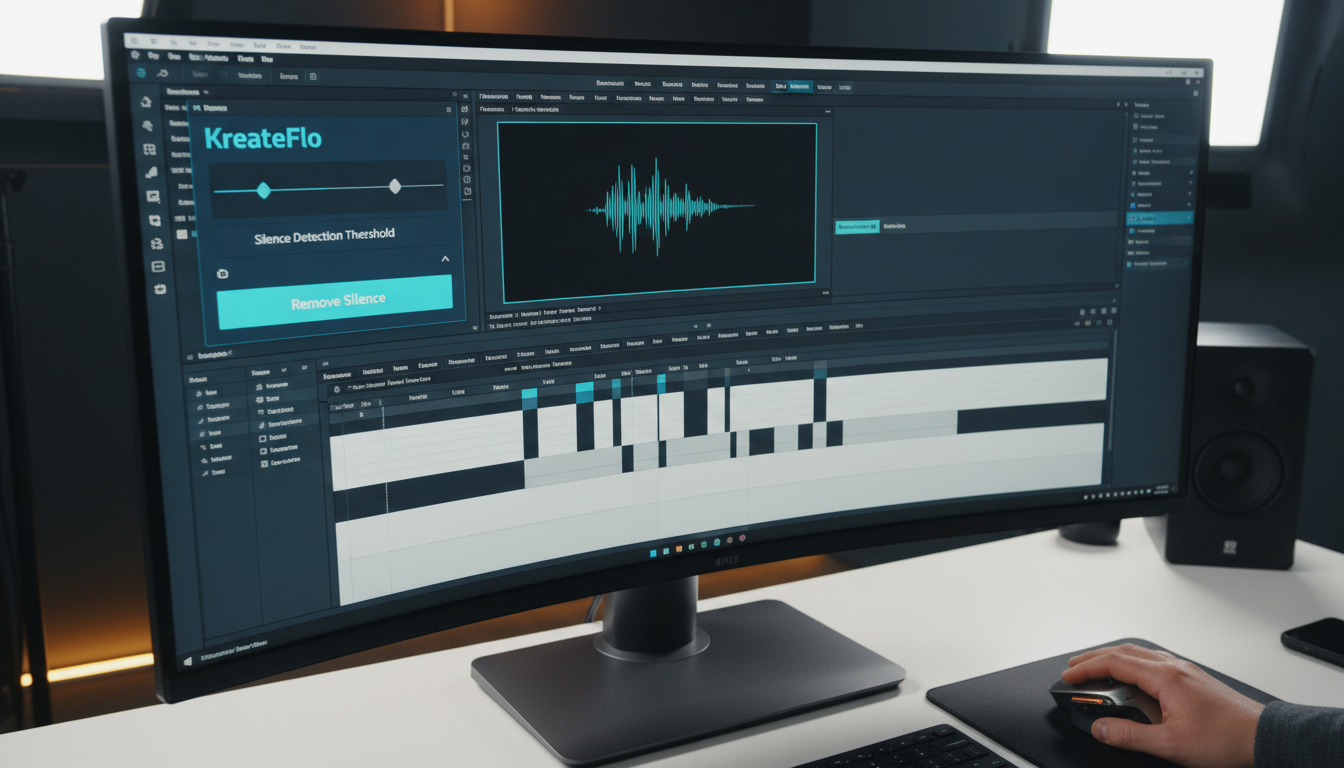
I used to dread the rough cut phase. It was pure drudgery. I sat with my headphones on, caffeinated, hitting the C and V keys like a madman for hours. Now, my workflow in Premiere Pro looks like this:
Import & Sync: I drop the interview and the secondary angles into a multi-cam sequence.
AI Pass: I open the plugin, set my -32dB threshold, and let the Silence Remover work.
Creative Polish: While the plugin is processing (about 60 seconds), I grab a coffee. When I come back, the timeline is tight.
B-Roll & Captions: I spend the remaining 90% of my time on the fun stuff—finding viral clips, adding b-roll, and styling animated captions.
This workflow allows me to take on three times the client work I could handle two years ago. I'm not working harder. I'm letting the software do the "dumb" work.
Future-Proofing Your Editing in 2026
The trend is clear: AI isn't coming for your job, but the editor who uses AI is coming for the job of the editor who doesn't [10]. By 2026, the industry expectation for turnaround times plummeted. Clients who used to wait a week for a podcast edit now expect it in 48 hours.
Staying competitive in Adobe Premiere Pro means embracing these extensions. It's about building a consistent content brand without spending 80 hours a week in a dark room. Tools like silence removers are the calculators of the video world. You still need to know the math of storytelling, but you don't need to do the long division by hand anymore.
Actionable Takeaway: Don't wait until you're overwhelmed to try these tools. Download the free version today and run it on your next project just to see the difference.
FAQ: Removing Silence in Premiere Pro
What is the fastest way to remove silence in Premiere Pro for free?
The fastest free method is using a dedicated Premiere Pro CEP extension [9]. It automates the detection and ripple deletion of dead air, which is significantly faster than manual blade cuts or Adobe's native Text-Based Editing.
How effective are Premiere Pro's built-in tools for silence removal?
They are improving. The native Text-Based Editing in 2026 is great for rough passes. However, it often lacks the padding controls needed to keep the audio sounding natural, which is why pros use a third-party plugin for the final tighten.
Why should I use a plugin instead of editing manually?
Time and mental energy. A 60-minute podcast takes roughly 4 hours to chop manually. A plugin does it in about 90 seconds. That's nearly 4 hours of your life you get back for every hour of footage you edit.
What other free tools come with the silence remover?
Many high-quality plugins offer a free forever tier. This typically includes the Silence Remover, a Copy & Paste assistant for clip attributes, and a Transition Assistant to help manage batch edits.
Can I remove silence on multi-cam clips?
Yes, provided your plugin supports multi-track locking. This ensures that when silence is removed from the audio track, the cuts are applied across all video angles simultaneously to keep everything in sync.
Ready to stop the manual grind? Stop wasting your weekends on dead air. Download the free Silence Remover for Premiere Pro and reclaim your editing time today. Your brain and your clients will thank you.
References
cutback.video/blog/how-to-automatically-remove-silence-in-premiere-pro-using-ai-(2025-guide)
cutsio.com/blog/best-silence-removal-software-for-podcaster-using-premiere
cutback.video/blog/the-best-auto-silence-removal-plugin-for-premiere-pro
cutback.video/blog/ai-editing-workflows-for-content-creators-in-2026-(guide)
firecut.ai/blog/editing-video-with-ai-5-trends-you-cant-ignore-in-2026/
digitalproduction.com/2026/04/08/autocut-brings-ai-cleanup-inside-premiere-pro/
Try KreateFlo free
3 tools forever, 7-day trial on the rest. No credit card to start.
Download KreateFlo